


Při použití KiCAD’s Python API pro pcbnew, můžete zobrazit dialog pomocí následujícího úryvku
show_wx_dialog_example.py
# Zobrazit info dialog
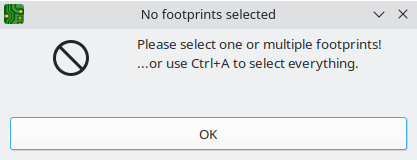
dlg = wx.MessageDialog(None, "Please select one or multiple footprints!\n...or use Ctrl+A to select everything.", "No footprints selected", wx.OK | wx.ICON_ERROR)
dlg.ShowModal()
dlg.Destroy()
Všimněte si, že musíte
import_wx.py
import wxna začátek vašeho pluginu.
Tento kód zobrazí následující dialog:
Kompletní plugin příklad:
DialogExamplePlugin.py
#!/usr/bin/env python
import pcbnew
import wx

class DialogExamplePlugin(pcbnew.ActionPlugin):
    def defaults(self):
        self.name = "Show dialog example"
        self.category = "A descriptive category name"
        self.description = "A description of the plugin and what it does"
        self.show_toolbar_button = False # Optional, defaults to False

    def Run(self):
        dlg = wx.MessageDialog(None, "Please select one or multiple footprints!\n...or use Ctrl+A to select everything.", "No footprints selected", wx.OK | wx.ICON_ERROR)
        dlg.ShowModal()
        dlg.Destroy()

DialogExamplePlugin().register() # Instantiate and register to Pcbnew
Můžete umístit tento plugin, například, v
kicad_plugin_path.txt
~/.local/share/kicad/7.0/scripting/plugins/DialogExamplePlugin.pyNezapomeňte obnovit pluginy z pcbnew menu.
Pokud vám tento článek pomohl, zvažte, zda mi nekoupíte kávu nebo nepřispějete přes PayPal na podporu výzkumu a publikování nových článků na TechOverflow
