Wie man C++-Lambda oder Funktions-Callback in ROOT TButtons verwendet
Die ROOT-C++-TButton-API erlaubt es Ihnen nur, einen method-String an ein TButton-Objekt zu übergeben, der vom CINT-Interpreter interpretiert wird. Während dies in einigen Aspekten flexibel ist, bietet es keine Möglichkeit, ein Lambda oder einen Funktionszeiger an den Button zu übergeben.
Die Lösung besteht darin, eine benutzerdefinierte Klasse von TButton abzuleiten und ihre TButton::ExecuteEvent()-Funktion zu überschreiben. Der größte Teil des Event-Handlers sollte von der originalen TButton::ExecuteEvent()-Funktion kopiert werden, wobei nur
gROOT->ProcessLine(GetMethod());durch
clickCallback()ersetzt wird.
Als Callback-Member verwenden wir ein std::function<void()>-Objekt, das - im Gegensatz zu einem C-Funktionszeiger - in der Lage ist, Lambdas mit Kontext zu speichern, d.h. Parameter an den Callback zu übergeben.
Vollständiger Code
TButtonWithCallback.hpp
#pragma once

#include <TButton.h>
#include <functional>

/**
 * Custom TButton class that allows setting a callback function
 * (instead of an interpreted string) to be called when the button is clicked.
 */
class TButtonWithCallback : public TButton {
    friend class TButton;
public:
    TButtonWithCallback(const char *title, std::function<void()> clickCallback, Double_t x1, Double_t y1, Double_t x2, Double_t y2);
    void ExecuteEvent(Int_t event, Int_t px, Int_t py) override;

private:
    std::function<void()> clickCallback;
    bool fFocused = false;
};TButtonWithCallback.cpp
#include "TButtonWithCallback.hpp"
#include <TROOT.h>
#include <TVirtualPad.h>
#include <TCanvas.h>

TButtonWithCallback::TButtonWithCallback(const char *title, std::function<void()> clickCallback, Double_t x1, Double_t y1, Double_t x2, Double_t y2)
    : TButton(title, "(void)0;", x1, y1, x2, y2), clickCallback(clickCallback) {}

void TButtonWithCallback::ExecuteEvent(Int_t event, Int_t px, Int_t py) {
    //check case where pressing a button deletes itself
    if (ROOT::Detail::HasBeenDeleted(this)) return;

    if (IsEditable()) {
        TPad::ExecuteEvent(event,px,py);
        return;
    }

    auto cdpad = gROOT->GetSelectedPad();
    HideToolTip(event);

    switch (event) {

    case kMouseEnter:
        TPad::ExecuteEvent(event,px,py);
        break;

    case kButton1Down:
        SetBorderMode(-1);
        fFocused = kTRUE;
        Modified();
        Update();
        break;

    case kMouseMotion:

        break;

    case kButton1Motion:
        if (px<XtoAbsPixel(1) && px>XtoAbsPixel(0) &&
            py<YtoAbsPixel(0) && py>YtoAbsPixel(1)) {
            if (!fFocused) {
                SetBorderMode(-1);
                fFocused = kTRUE;
                Modified();
                GetCanvas()->Modified();
                Update();
            }
        } else if (fFocused) {
            SetBorderMode(1);
            fFocused = kFALSE;
            Modified();
            GetCanvas()->Modified();
            Update();
        }
        break;

    case kButton1Up:
        SetCursor(kWatch);
        if (fFocused) {
            TVirtualPad::TContext ctxt(cdpad, kTRUE, kTRUE);
            clickCallback();
        }
        //check case where pressing a button deletes itself
        if (ROOT::Detail::HasBeenDeleted(this)) return;
        SetBorderMode(1);
        Modified();
        Update();
        SetCursor(kCross);
        break;
    }
}Vollständiges Anwendungsbeispiel
Dieses Beispiel hat den Code in einer einzigen Datei zusammengeführt
#include <TApplication.h>
#include <TCanvas.h>
#include <TButton.h>
#include <iostream>
#include "TSystem.h"
#include <TROOT.h>
#include <functional>

using std::cout;
using std::endl;

/**
 * Custom TButton class that allows setting a callback function
 * (instead of an interpreted string) to be called when the button is clicked.
 */
class TButtonWithCallback : public TButton {
    friend class TButton;
public:
    TButtonWithCallback(const char *title, std::function<void()> clickCallback, Double_t x1, Double_t y1, Double_t x2, Double_t y2)
        : TButton(title, "(void)0;", x1, y1, x2, y2), clickCallback(clickCallback) {}

    void ExecuteEvent(Int_t event, Int_t px, Int_t py) override {
        //check case where pressing a button deletes itself
        if (ROOT::Detail::HasBeenDeleted(this)) return;

        if (IsEditable()) {
            TPad::ExecuteEvent(event,px,py);
            return;
        }

        auto cdpad = gROOT->GetSelectedPad();
        HideToolTip(event);

        switch (event) {

        case kMouseEnter:
            TPad::ExecuteEvent(event,px,py);
            break;

        case kButton1Down:
            SetBorderMode(-1);
            fFocused = kTRUE;
            Modified();
            Update();
            break;

        case kMouseMotion:

            break;

        case kButton1Motion:
            if (px<XtoAbsPixel(1) && px>XtoAbsPixel(0) &&
                py<YtoAbsPixel(0) && py>YtoAbsPixel(1)) {
                if (!fFocused) {
                    SetBorderMode(-1);
                    fFocused = kTRUE;
                    Modified();
                    GetCanvas()->Modified();
                    Update();
                }
            } else if (fFocused) {
                SetBorderMode(1);
                fFocused = kFALSE;
                Modified();
                GetCanvas()->Modified();
                Update();
            }
            break;

        case kButton1Up:
            SetCursor(kWatch);
            if (fFocused) {
                TVirtualPad::TContext ctxt(cdpad, kTRUE, kTRUE);
                clickCallback();
            }
            //check case where pressing a button deletes itself
            if (ROOT::Detail::HasBeenDeleted(this)) return;
            SetBorderMode(1);
            Modified();
            Update();
            SetCursor(kCross);
            break;
        }
    }

private:
    std::function<void()> clickCallback;
    // Clone of TButton::fFocused which is private
    bool fFocused = false;
};

int main(int argc, char **argv) {
    // Initialize the ROOT application
    TApplication app("ROOT Application", &argc, argv);

    // Create a canvas for displaying the button
    TCanvas *canvas = new TCanvas("canvas", "Button Example", 800, 600);

    // Create a button and set its callback function
    TButtonWithCallback *button = new TButtonWithCallback("Click Me", [&]() {
        cout << "Button clicked!" << endl;
    }, 0.1, 0.1, 0.3, 0.2);
    button->Draw(); // Draw the button on the canvas

    // Update the canvas to display the button
    canvas->Modified();
    canvas->Update();

    // Run the application event loop
    app.Run();

    return 0;
}Kompilieren Sie den Code mit
g++ -o button_example button_example.cpp `root-config --cflags --libs`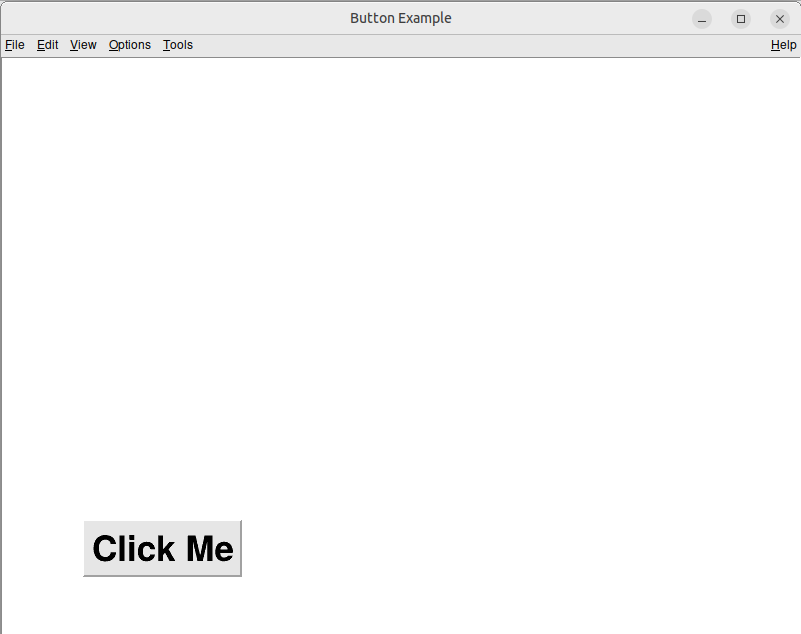
Wenn Sie auf den Button klicken,
Button clicked!wird auf der Konsole ausgegeben.