
如何在 KiCAD pcbnew 插件中显示 wx 对话框消息
使用 KiCAD 的 pcbnew Python API 时,你可以使用以下代码片段显示对话框
show_wx_dialog_example.py
# 显示信息对话框
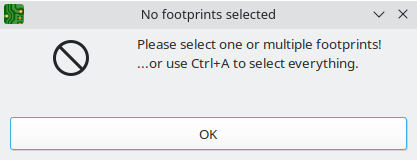
dlg = wx.MessageDialog(None, "Please select one or multiple footprints!\n...or use Ctrl+A to select everything.", "No footprints selected", wx.OK | wx.ICON_ERROR)
dlg.ShowModal()
dlg.Destroy()注意你需要
import_wx.py
import wx在插件顶部。
此代码将显示以下对话框:
完整插件示例:
DialogExamplePlugin.py
#!/usr/bin/env python
import pcbnew
import wx

class DialogExamplePlugin(pcbnew.ActionPlugin):
    def defaults(self):
        self.name = "Show dialog example"
        self.category = "A descriptive category name"
        self.description = "A description of the plugin and what it does"
        self.show_toolbar_button = False # Optional, defaults to False

    def Run(self):
        dlg = wx.MessageDialog(None, "Please select one or multiple footprints!\n...or use Ctrl+A to select everything.", "No footprints selected", wx.OK | wx.ICON_ERROR)
        dlg.ShowModal()
        dlg.Destroy()

DialogExamplePlugin().register() # Instantiate and register to Pcbnew你可以将此插件放在例如
kicad_plugin_path.txt
~/.local/share/kicad/7.0/scripting/plugins/DialogExamplePlugin.py不要忘记从 pcbnew 菜单刷新插件。
If this post helped you, please consider buying me a coffee or donating via PayPal to support research & publishing of new posts on TechOverflow